Optimising video for CD/DVD ROM & the web by Dane Ramshaw & Matt Ottewill
IntroductionThis article provides some practical advice on preparing video files (and there audio soundtracks) for multimedia projects. Ensure you have read the article on Digital Video File Formats & Codecs before reading this one. What is optimising?Because there are many different home audio visual replay systems (TV, computer, iPod etc) each with its own strengths and weakness, we have to be careful when preparing audio and video files to ensure the target system can handle them. For example, its no good posting a 4Gb DVD quality movie on a web site, it will take too long to download. On the other hand, why put a 340 x 280 pixel video clip on a DVD disc when DVD players and TVs can handle full frame wide screen and surround sound pictures? This process of preparation (or mastering) is often called optimising. Optimising usually involves 3 important processes ...
Delivery systems that need optimised contentWEB SITESIf you are going to deliver a project as a web site you will need to consider ...
CD / DVD ROMIf you are going to deliver a project on an optical disc you will need to consider ...
All CD-ROMs have a maximum data size (capacity) of at least 650Mb. Audio CDs achieve a greater data size of 740Mb because unlike CDROM data discs they do not use up space with error correction data. For further reading view our CD mastering pdf. A 4x CD-ROM drive has a maximum transfer bandwidth of 600 Kilobytes per second. Providing you ensure your data rate is below this threshold, playback should be glitch free. Incidentally, don't assume that higher rated drive speeds will necessarily produce better data rates. The system often imposes a performance overhead so base your calculations on 4x speed drives. So which video/audio codec/file formats should I use??!You will need to compress your video and audio using codecs that your end-user system has installed or you will need to persuade them to install the required codecs to watch your video. IMPORTANT!!! You should click here to read our article on Media Player software if you are unclear about codecs, file formats and how computers play media files. There are 3 main choices ...
WINDOWS MEDIA PLAYEROn Macs and PCs, Windows Media Player can play video and audio files created in the Windows Media Player format. These proprietary file formats utilise a number of video and audio codecs but Microsoft seem a little cagey about exactly what they all are! Find out more here. My personal view, and the view of most Hollywood film companies, is that Windows Media Video is inferior to files prepared in QuickTime format with the Sorenson or H264 codecs. QUICKTIMEQuickTime is a x-platform (Mac & PC) media player and codec application. QuickTime is installed on all Macs, most PCs and is available as a FREE download. Read more here QuickTime includes a wide range of the BEST codecs known to man and is the file format choice for film and video professionals. Significantly, QuickTime includes the best current audio and video codecs including ...
Once you have used these codecs you will not be satisfied with MPEG-1 or Indeo!!! You may by now have concluded that I think you should be using one of these codecs and that your end-user will need to have QuickTime installed. Click here for a more comprehensive list of current codecs Best codec for the MacIf your are authoring just for the Mac, use the Sorenson 3 or H264 video codecs and either IMA, Qualcomm PureVoice or QDesign Music 2 audio codecs. QuickTime has these codecs. Detailed advice is offered later. (You will have to use the QuickTime .mov file format). Best codec for the PCFor end-users WITHOUT QuickTime installed (some PC users) First of all you should persuade your end-user to download and install it with a link like this ... If this is not possible, then you will have to use a codec that Windows Media Player has such. For end-users WITH QuickTime, if your PC end-users have the PC version of QuickTime installed then you should use the Sorenson 3 or H264 video codecs. Best codec for x-platform (Macs & PCs)End-users without QuickTime If you are preparing video for Mac AND PC users and quality doesn't matter, use MPEG-1 or 4 and give the file an .mpg extension. Both QuickTime and Windows Media Player have the codec, will recognise and play it. End-users with QuickTime If you are preparing video for Mac AND PC users both of whom either have QuickTime installed, or can be persuaded to install it, then use Sorenson 3 or H264 video codecs and give the file an .mov extension. QuickTime will recognise and play the same file it on either platform (don't forget to flatten the file during optimising). Different settings in video & audio codecsMost audio and video codecs allow varying degrees of compression by adjusting various settings. For example ...
NOTE: An exception is the DV codec which uses fixed setting which cannot be altered. Current computers struggle to run the DV codec (QuickTime has it) and display the video simultaneously, so DV video must be "re-compressed" with another codec, such as MPEG-1 or Sorenson before the computer can play it effectively. Audio is uncompressed. Typical compression controlsThe following are the controls you will alter when optimising your video/audio files ... VIDEO CODEC RELATED SETTINGSChoice of codec (MPEG-1, Sorenson, H.264 etc) Bit rate (fixed or variable) Spacial quality Key frame frequency Codecs work by examining a frame, deciding upon the best way to compress it, and then applying the compression to it all the following frames until the next key frame is reached. The frequency with which key frames occur is important in determining the effectiveness of compression. Too often and the file size will swell, to widely apart and picture quality will suffer. As a guideline ...
AUDIO CODEC RELATED SETTINGSChoice of codec (MP3, IMA 4:1 , Qualcomm, QDesign etc) GENERAL VIDEO SETTINGSFrame size Optimising applicationsThere are a variety of programs and processes available for optimising. Most fall into one of several broad categories ...
Like many others, I have found Cleaner to produce the best results for CDROM, DVD and the web. WIZARDSBecause the process of choosing settings for optimising can be complex, most optimising applications offer presets or "Wizards" which you can use to compress/optimise your files ready for publishing to the web or disc. However, you may wish to choose your own settings. Below are listed a few suggestions that have worked for me using Cleaner when creating Sorenson QuickTime video files.
|
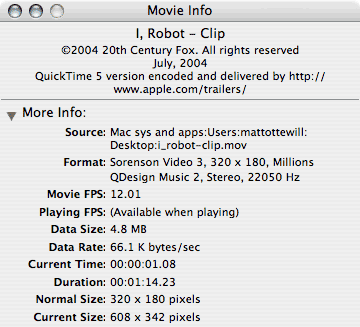
What codecs and settings should I use?Below are a number of suggested settings for you to try out BUT!!! .... It's worth downloading a QuickTime movie trailer and then examining the setting used for it. Here's one ...
IMPORTANT NOTE ON X-PLATFORM FLATTENINGQuickTime can access and replay individual tracks of audio or video in a file, Window Media Player cannot. Don't forget to flatten the file if it will be used on both Macs and PCs. If its just for the Mac you needn't bother. All Macs have QUickTime. Optimising DV for CD/DVD-ROM for QuickTimeVideo ...
Audio ...
There are other alternative combinations of course. Try experimenting. Optimising DV for widescreen CD/DVD-ROM for QuickTimeVideo ...
Audio ...
Optimising video for BroadbandSUGGESTED SETTINGS FOR WEB DOWNLOAD / STREAMINGVideo ...
Audio ...
NOTE: For broadband you can increase frame rate and aspect size. Optimising video for 56K (V90) MODEMSBecause modems rarely achieve their quoted data rates, a prudent rate for a 56Kbps modem will be about 5 kilobytes per second. If you prepare your video or audio files with such a data rate you stand a good chance of achieve good streaming performance by may experience unacceptable quality loss. SUGGESTED SETTINGS FOR HTTP STREAMING (short wait before playback) ON 56K MODEMSVideo ...
Audio ...
These settings should produce a data rate of around 10KBps so the end-user will have to wait for some buffering to take place before playback commences, but not too long. For broadband you can increase frame rate and aspect size. SUGGESTED SETTINGS FOR RSTP STREAMING ON 56K MODEMSUse the Wizard presets in Cleaner and Export settings in QuickTime Pro.
|